Why Is My Apple Watch Not Tracking My Steps?
If you’re wondering, “Why is my Apple Watch not tracking my steps?” you’re not alone. It's a common issue that many users face, and while it can be frustrating, there are easy ways to fix it. Your Apple Watch is designed to be a reliable tool for fitness tracking, but a variety of factors can interfere with its ability to track your steps accurately. Let’s explore the reasons why this might happen and how to get things back on track.
Why Step Tracking Matters
Step tracking is more than just a number on your wrist; it's a tool that helps you stay on top of your health and fitness goals. Here’s why it’s essential:
Helps Monitor Your Daily Activity Levels
Tracking your steps gives you a snapshot of how active you are throughout the day. It can help you see if you're meeting your movement goals or need to add more physical activity. Your Apple Watch gives you gentle reminders to stand, move, or exercise, keeping you mindful of staying active.
Tracks Progress Towards Fitness Goals
Your Apple Watch doesn’t just track steps; it helps you measure your progress towards your fitness goals. Whether you're aiming for 10,000 steps or training for a race, seeing your progress on your wrist is a great motivator. It gives you the satisfaction of knowing you’re moving in the right direction.
Provides Insight Into Your Overall Health
Steps are a simple yet important metric of your health. By tracking them consistently, your Apple Watch can help spot trends and provide insight into your fitness habits. Regular walking can improve cardiovascular health, boost energy, and help you manage weight—making your step count an essential part of your wellness routine.

Quick Fixes for Apple Watch Step Tracking
If your Apple Watch isn’t tracking your steps, don’t panic. Here are a few quick fixes to get it working properly again.
Restart Your Apple Watch and iPhone
The simplest solution might be to restart both your Apple Watch and iPhone. This can help resolve any syncing issues or minor glitches. Just turn off both devices, wait a few seconds, and turn them back on to see if the step tracking works.
Ensure Fitness Tracking and Heart Rate Are On
For your Apple Watch to track your steps accurately, both Fitness Tracking and Heart Rate features need to be enabled. On your iPhone, go to Settings > Privacy > Motion & Fitness, and make sure Fitness Tracking is on. Additionally, check that Heart Rate monitoring is active on your Apple Watch to ensure accurate activity data.
Wear Your Apple Watch Snugly
Wearing your Apple Watch too loosely can affect its ability to track your movements. Make sure the watch is snug on your wrist, but not uncomfortable. The sensors work best when they are in contact with your skin, so adjusting the fit might solve the tracking issue.
Detailed Troubleshooting for Step Tracking
If the basic fixes don’t resolve the issue, try these more detailed troubleshooting steps.
Enable Motion & Fitness on iPhone
Make sure that Motion & Fitness is enabled on your iPhone. This setting allows your iPhone to sync fitness data with your Apple Watch. To check, go to Settings > Privacy > Motion & Fitness, and toggle on Fitness Tracking.
Turn on Wrist Detection
Wrist Detection ensures your Apple Watch knows when you're wearing it, allowing for more accurate tracking. If it’s turned off, the watch might not track steps or other activities properly. To enable it, go to Settings > Passcode > Wrist Detection and make sure it’s turned on.
Update Your Devices
Outdated software can sometimes cause your Apple Watch to malfunction. Check for updates on both your iPhone and Apple Watch. To do this, go to the Watch app on your iPhone, tap General > Software Update, and install any available updates.
Calibrate Your Watch Sensors
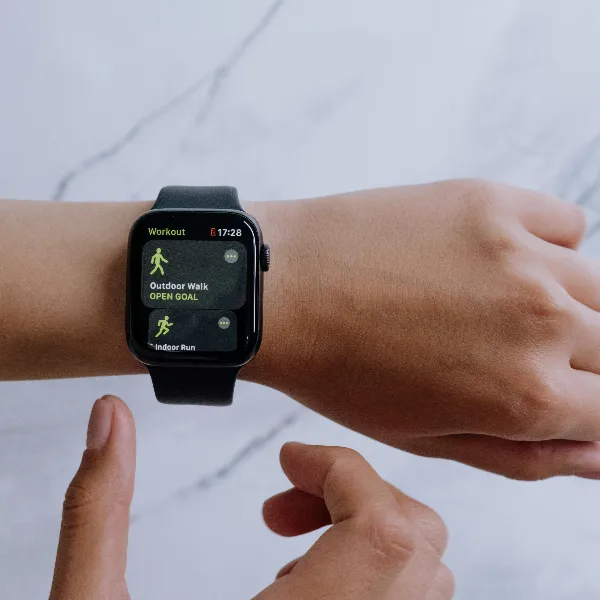
To improve the accuracy of your Apple Watch’s step tracking, calibrate the sensors. This helps the watch better understand your movements. To calibrate, open the Workout app and start an outdoor walk or run. Try to maintain a steady pace for at least 20 minutes. This will help the sensors adjust for more precise tracking.
Reset Calibration in the Watch App
If you’re still having trouble, try resetting the calibration data. Open the Watch app on your iPhone, go to My Watch > Privacy, and tap Reset Fitness Calibration Data. Once you reset, try walking again to see if the calibration helps improve the tracking accuracy.
Verify Your Info in the Health App
Sometimes, the issue may not be with your Apple Watch, but with how data is being recorded in the Health app. Open the Health app on your iPhone and check if your Apple Watch data is properly synced. If it’s not, try syncing the devices again or restarting the app.
When to Unpair and Re-pair Your Apple Watch
If the above steps don’t resolve the issue, you may need to unpair and re-pair your Apple Watch with your iPhone. This can help resolve syncing problems and other persistent issues.
When It’s Not Syncing with Your iPhone
If your Apple Watch won’t sync with your iPhone and none of the other steps have worked, unpairing and re-pairing might fix the issue. To do this, go to the Watch app on your iPhone, tap All Watches, then select the (i) icon next to your watch and tap Unpair Apple Watch.
When You Have Persistent Issues
If your Apple Watch still isn’t tracking your steps after trying all the troubleshooting methods, unpairing and re-pairing can help reset the devices. This often fixes any underlying issues and gets things working properly again.
When Setting Up a New Watch
If you’ve just set up a new Apple Watch and it isn’t tracking steps, the pairing process might have been incomplete. Follow the setup instructions carefully, and if needed, unpair and re-pair the watch to get it working correctly.
Conclusion
If your Apple Watch isn’t tracking your steps, don’t worry—there are a variety of solutions you can try. From simple fixes like restarting your devices to more advanced troubleshooting like recalibrating your watch, there are plenty of ways to get your watch back on track. If all else fails, unpairing and re-pairing your watch can help resolve any syncing issues. Keep your watch snug, update your devices, and you’ll be back to tracking your steps in no time.