Apple Watch Heart Rate Sensor Not Working?
If your Apple Watch heart rate sensor isn’t working, you’re not alone. Whether it’s stopping in the middle of a workout or simply not tracking your heart rate at all, it’s a common issue. Fortunately, you don’t have to panic. There are several easy steps you can take to troubleshoot the problem. In this guide, we’ll walk you through simple solutions, from adjusting your watch to checking for software updates. Let’s get your Apple Watch heart rate sensor back to tracking in no time.
Why Heart Rate Monitoring Matters on Your Apple Watch
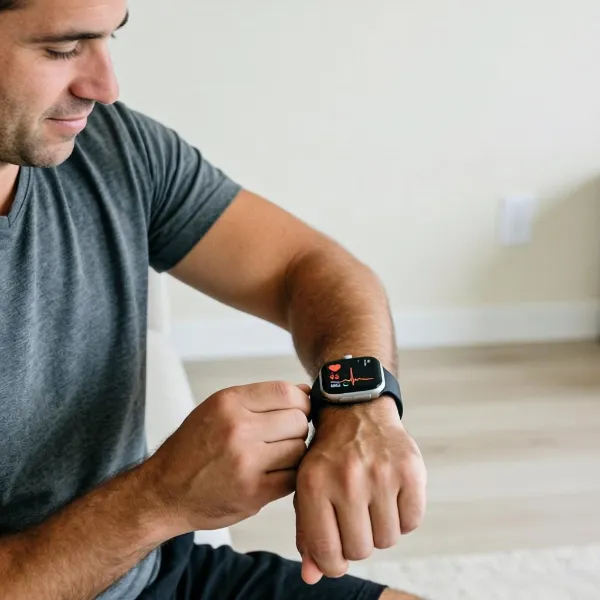
The heart rate sensor on your Apple Watch isn’t just a fitness tool; it’s also a key feature for tracking your health. It helps you stay on top of your physical well-being, especially when combined with other fitness and health features.
Track Your Health and Fitness
Whether you’re running a 5K or just walking around the block, your Apple Watch keeps tabs on your heart rate, helping you track your fitness progress. This data is essential for understanding your physical condition and pushing yourself to the next level.
Monitor Stress and Recovery
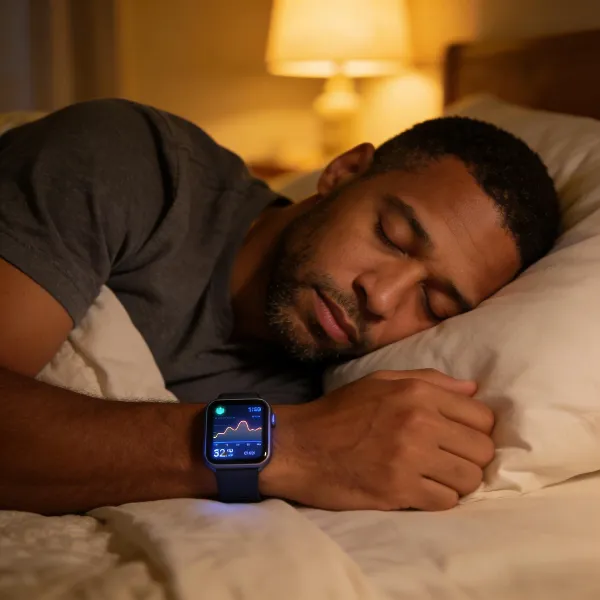
Your heart rate isn’t just about exercise; it also helps you monitor your stress levels and recovery. For example, a higher-than-usual resting heart rate might indicate that your body is stressed or not fully recovered from a workout. Monitoring these changes can help you make informed decisions about your daily routine.
Improve Workout Accuracy
Accurate heart rate tracking can make a big difference when it comes to your workout intensity. By knowing your heart rate zones, you can exercise at the right level for maximum benefits, whether you’re aiming for fat burning or peak performance.
Common Reasons Your Apple Watch Heart Rate Sensor Isn’t Working
Before diving into fixes, it's important to understand why the sensor might not be working. Let’s look at some of the most common causes.
Poor Fit or Positioning
One of the most common reasons the heart rate sensor fails is improper positioning. If your Apple Watch isn’t snug against your wrist, the sensor won’t be able to get an accurate reading. Make sure the watch fits comfortably but tightly around your wrist.
Dirty or Blocked Sensors
Over time, sweat, dirt, and oils from your skin can build up on the sensor, blocking its ability to measure your heart rate. Regularly cleaning the back of the watch will keep it functioning properly.
Incorrect Settings or Permissions
Sometimes, the problem might not be the watch itself but the settings. Make sure that heart rate tracking is enabled in the Apple Watch settings. You also need to ensure that the proper permissions are set to allow the watch to track health data.
Low Battery or Power Mode
If your Apple Watch is running low on battery or in Power Reserve mode, it may disable certain features, including heart rate monitoring. Keep an eye on your battery level to avoid interruptions during workouts.
Third-Party App Conflicts
If you use third-party fitness apps, they may conflict with the Apple Watch's built-in heart rate sensor. These apps often require specific permissions, and a misconfiguration can prevent accurate tracking. Try disabling or adjusting settings in third-party apps to see if that solves the issue.
Quick Fixes for Heart Rate Sensor Issues
Before diving into advanced solutions, there are several quick fixes you can try to get your heart rate sensor working again.
Adjust the Fit of Your Apple Watch
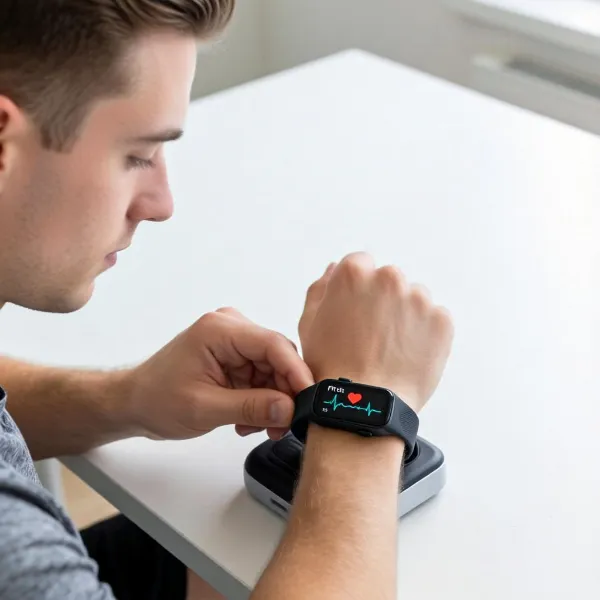
A proper fit is key. If your Apple Watch is too loose, the sensor won’t make contact with your skin. Adjust the band so the watch sits comfortably on your wrist, ensuring the sensor is in direct contact with your skin.
Clean the Heart Rate Sensor
Dirt, sweat, and oils can accumulate on the sensor, blocking its ability to measure your heart rate. To clean it, simply wipe the back of the watch with a soft, dry cloth. If there's stubborn buildup, dampen the cloth with a small amount of water, but avoid using harsh chemicals.
Enable Heart Rate Tracking in Settings
Check your settings to make sure that heart rate tracking is turned on. Open the Health app on your Apple Watch and ensure that heart rate tracking is enabled under Heart Rate settings. This simple step can fix most sensor issues.
Restart Your Apple Watch and iPhone
If the sensor still isn’t working, try restarting both your Apple Watch and iPhone. This can resolve any minor software glitches that may be interfering with heart rate tracking. Power both devices off, wait a few seconds, and then turn them back on.
Turn Off Low Power Mode
Low Power Mode can turn off heart rate monitoring to conserve battery life. Make sure this feature is turned off by going to Settings > Battery and ensuring that Low Power Mode is disabled.
Unpair and Re-pair Your Watch
If none of the previous steps work, unpairing and re-pairing your Apple Watch might help. This resets the connection between your watch and iPhone, which can resolve persistent issues. To do this, open the Watch app on your iPhone, tap Unpair Apple Watch, and follow the instructions to re-pair the devices.
Advanced Troubleshooting for Persistent Problems
If the basic troubleshooting steps didn’t fix the issue, there are a few more advanced solutions to consider.
Update watchOS to the Latest Version
Apple frequently releases updates for watchOS that fix bugs and improve functionality. If you’re not on the latest version, it could be causing the heart rate sensor to malfunction. To check for updates, go to Settings > General > Software Update on your Apple Watch and install any available updates.
Disable Third-Party Apps Temporarily
Certain third-party apps can interfere with the heart rate sensor. If you suspect that one of these apps is the problem, try disabling them temporarily. You can do this by going to Settings > Privacy > Motion & Fitness and toggling off apps that may be causing issues.
Contact Apple Support
If your heart rate sensor still isn’t working after trying all of these steps, it may be time to contact Apple Support. They can help you troubleshoot further or schedule an appointment to diagnose the problem in person at an Apple Store.
Conclusion
If your Apple Watch heart rate sensor isn’t working, there are a variety of simple steps you can take to troubleshoot the issue. Start with the basics—check the fit, clean the sensor, and ensure the settings are correct. If the problem persists, try updating watchOS, unpairing and re-pairing your devices, or contacting Apple Support. With these fixes, you’ll be back to tracking your heart rate in no time!